
Common Mistakes That Cause PC Bottlenecks and How to Optimize Performance
A powerful PC can still feel slow if one part of the system holds everything else back. This problem, known as a bottleneck, often comes from small mistakes in how the hardware is chosen or set up. Most bottlenecks happen when one component, like the CPU, GPU, or memory, cannot keep up with the rest of the system.
These mistakes are common and usually avoidable. Using an outdated processor with a high-end graphics card, running with too little RAM, or pairing fast storage with a weak power supply can all limit performance. Even display settings and motherboard choices play a role in how smoothly a system runs.
By learning where bottlenecks usually appear, anyone can make smarter decisions about upgrades and settings. This article breaks down the most frequent errors step by step, showing how to spot them and how to keep a system balanced for better performance.
Understanding PC Bottlenecks
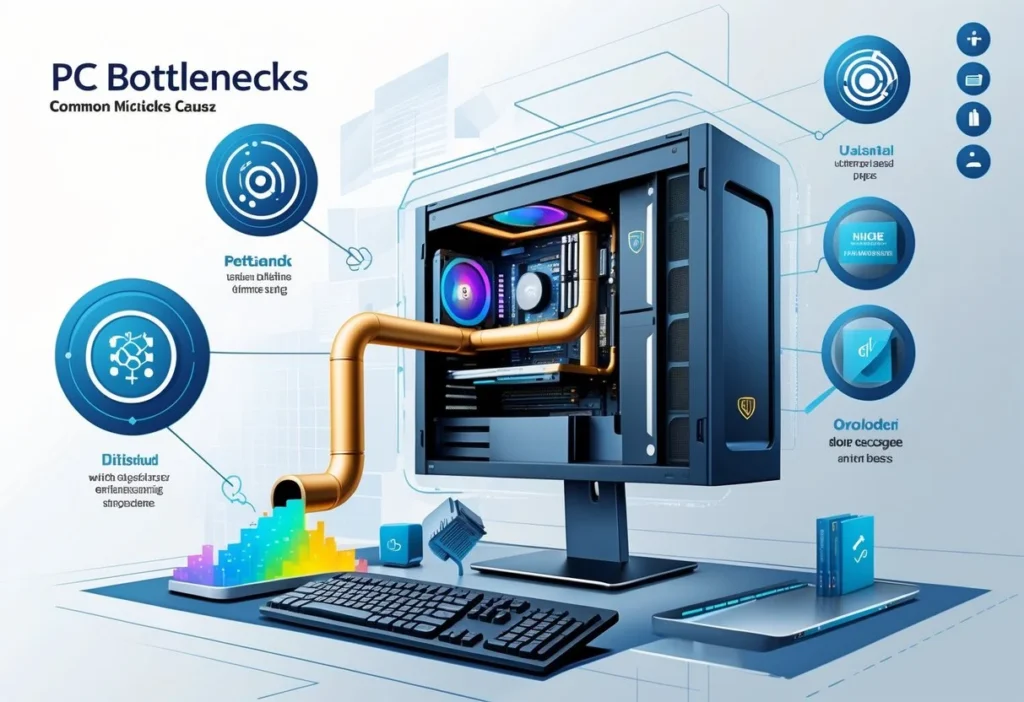
A bottleneck happens when one part of a computer limits the speed or efficiency of the rest. It often shows up in gaming, video editing, or other demanding tasks where the system cannot perform as expected. Knowing what causes it and how it shows up makes it easier to fix or prevent.
What Is a PC Bottleneck?
A PC bottleneck occurs when one component slows down the performance of other parts. For example, if a graphics card is powerful but the processor cannot keep up, the CPU becomes the limiting factor. The opposite can also happen if the GPU is weaker than the CPU.
This imbalance prevents the system from running at full potential. Even with plenty of RAM or fast storage, the slowest part controls the overall speed. Bottlenecks are not hardware failures but mismatches in performance levels.
Common bottlenecks include:
- CPU bottleneck: The processor cannot handle the workload of the GPU.
- GPU bottleneck: The graphics card limits frame rates despite a strong CPU.
- Memory or storage bottleneck: Insufficient RAM or slow drives cause delays.
How Bottlenecks Affect Performance
Bottlenecks reduce efficiency by forcing stronger components to wait on weaker ones. In gaming, this often appears as lower frame rates or stuttering. For productivity tasks, it can mean longer rendering times or slower file transfers.
The impact depends on the workload. A CPU bottleneck is more noticeable in games that rely heavily on processing power, while a GPU bottleneck appears in graphically demanding titles. Storage bottlenecks show up when loading large files or applications.
A system may not always use its best parts fully if another component holds it back. This leads to wasted potential and uneven performance. Even high-end hardware can feel slow if paired with mismatched parts.
Identifying Common Bottleneck Symptoms
Users can spot bottlenecks by watching how hardware behaves during tasks. If the CPU runs at 100% while the GPU sits at low usage, the processor is the problem. If the GPU is maxed out but the CPU is underused, the graphics card is the limit.
Other signs include frequent stuttering, long load times, or sudden drops in performance. Monitoring tools like Task Manager or third-party software help track usage levels.
A simple table can help clarify:
| Symptom | Likely Bottleneck |
|---|---|
| High CPU usage, low GPU usage | CPU bottleneck |
| High GPU usage, low CPU usage | GPU bottleneck |
| Slow application load times | Storage bottleneck |
| System lag when multitasking | RAM bottleneck |
Recognizing these patterns makes it easier to decide whether to adjust settings, upgrade hardware, or balance components more effectively.
CPU-Related Mistakes
Poor choices with processors often lead to wasted performance, higher temperatures, and reduced system stability. Many issues come from mismatched hardware, not meeting modern software demands, or skipping proper cooling solutions.
Pairing Low-End CPUs With High-End GPUs
A common mistake is combining a weak CPU with a powerful graphics card. When this happens, the processor cannot keep up with the data demands of the GPU. This creates a bottleneck where the graphics card sits underused, even though it is capable of much more.
For example, pairing an entry-level dual-core CPU with a high-end GPU like an RTX 4080 will cause frame rate drops and stuttering. The GPU will wait on the CPU to process game logic, AI, and background tasks.
To avoid this, users should balance CPU and GPU performance. A mid-range CPU can usually handle a mid-range or even some high-end GPUs, but very demanding cards require strong multi-core processors. Checking benchmarks and compatibility charts before buying prevents wasted money and poor performance.
Ignoring Core Count and Thread Requirements
Modern applications and games rely heavily on multiple cores and threads. Using a CPU with too few cores can cause slowdowns in both gaming and productivity tasks. This issue is especially noticeable in newer titles optimized for 6 or more cores.
For instance, a quad-core CPU without hyper-threading may run older games well but will struggle with modern open-world or simulation games. In these cases, frame pacing issues and background slowdowns become common.
Users should consider software requirements before choosing a processor. A good rule is to aim for at least 6 cores with 12 threads for gaming and 8 or more cores for heavy multitasking or content creation. Skipping this step limits system longevity and forces earlier upgrades.
Overlooking CPU Cooling Solutions
Even a powerful CPU cannot perform well without proper cooling. High temperatures cause the processor to throttle, reducing clock speeds and lowering performance. This often happens when users rely only on stock coolers in systems that demand more airflow.
Poor cooling not only slows performance but also shortens hardware lifespan. Heat can degrade thermal paste, stress components, and increase fan noise.
Investing in a quality air cooler or liquid cooling system helps maintain stable performance. Proper case airflow, clean dust filters, and regular maintenance also play a role. Users who ignore cooling often face crashes, inconsistent frame rates, and long-term damage to their systems.
GPU and Display Missteps
A graphics card can only perform at its best when paired with the right display, proper hardware balance, and up-to-date software. Small mistakes in these areas can lead to wasted performance, poor visuals, or unstable system behavior.
Mismatch Between GPU and Monitor Resolution
A strong GPU may be underused if paired with a low-resolution monitor. For example, a high-end card built for 4K gaming will not show its full potential on a 1080p display. The system will run smoothly, but much of the GPU’s capability will remain unused.
On the other hand, a weaker GPU paired with a 1440p or 4K monitor can struggle. This often results in lower frame rates, stuttering, or the need to reduce graphics settings. Users may expect smooth performance, but instead face a bottleneck caused by the mismatch.
When choosing a monitor, it helps to consider the GPU’s performance tier:
- Entry-level GPU → Best for 1080p
- Mid-range GPU → Works well with 1080p or 1440p
- High-end GPU → Designed for 1440p and 4K
Balancing resolution with GPU strength prevents wasted money and ensures stable performance.
Selecting an Inadequate GPU for Workloads
Selecting a GPU that does not meet workload demands is a common issue. Gaming, video editing, 3D rendering, and machine learning all place different loads on the GPU. A card that handles casual gaming may not manage professional rendering tasks.
For gaming, frame rate targets matter. A budget GPU might run older titles at 60 FPS but fail at modern games on higher settings. Professionals using software like Blender or Adobe Premiere often need more VRAM and compute power than entry-level cards provide.
It helps to check benchmarks for both games and applications before purchase. Comparing memory size, core count, and power draw offers a clearer picture of what the GPU can handle. Choosing based on actual workload avoids slowdowns and future upgrades.
Neglecting Driver Updates
Even with the right hardware, outdated drivers can limit performance. GPU drivers include bug fixes, optimizations, and support for new games or software. Skipping updates can cause crashes, poor frame rates, or missing features.
Manufacturers like NVIDIA and AMD release updates regularly. These updates often improve performance in specific games or resolve compatibility issues with new operating systems. Ignoring them leaves the system vulnerable to problems already solved by the update.
Users should install drivers directly from official sources. Enabling update notifications or checking monthly helps keep the GPU stable and efficient. Regular updates prevent bottlenecks caused by software rather than hardware.
RAM and Storage Issues
System slowdowns often come from memory limits and storage speed. When RAM runs out or storage drives cannot keep up, programs load slowly, multitasking becomes harder, and overall performance drops.
Insufficient RAM Capacity
When a computer does not have enough RAM, it cannot keep active programs and data in fast memory. The system then uses storage space as “virtual memory,” which is much slower. This creates delays when switching between tasks or opening large files.
The amount of RAM needed depends on usage. For example:
| Task Type | Recommended RAM |
|---|---|
| Basic browsing | 4–8 GB |
| Office work | 8–16 GB |
| Gaming / editing | 16–32 GB |
If RAM is too low, users may see stuttering, long load times, or even crashes. Adding more memory is usually the most effective fix for this type of bottleneck.
Using Slow or Mismatched RAM
RAM speed and configuration also affect performance. If memory modules have different speeds or sizes, the system may run at the speed of the slowest stick. This reduces efficiency and wastes potential performance.
Dual-channel or higher-channel setups provide better bandwidth. For example, two identical 8 GB sticks often perform better than a single 16 GB stick. Matching RAM type, speed, and size ensures stable and balanced performance.
Motherboards also have limits on supported speeds. Installing faster RAM than the board supports will not improve performance, since it will downclock to the maximum supported rate. Checking motherboard specifications before upgrading avoids this issue.
Relying Solely on HDDs Instead of SSDs
Hard drives (HDDs) are much slower than solid-state drives (SSDs). When the operating system, applications, or games run from an HDD, loading times increase, and the system feels less responsive.
SSDs use flash memory, which allows faster boot times, quicker file transfers, and smoother multitasking. Even a budget SSD offers significant improvements over a traditional hard drive.
A common setup is to use a smaller SSD for the operating system and frequently used programs, while keeping a larger HDD for bulk storage. This balance provides speed where it matters most without requiring a large investment.
Motherboard and Power Supply Oversights
A system can slow down or even fail when the motherboard does not match the components or when the power supply cannot handle the load. Both issues often come from rushing the planning stage of a build.
Choosing Incompatible Motherboards
A motherboard sets the foundation for what parts can be used. If someone chooses the wrong socket type, the CPU will not fit. If the chipset does not support certain features, the system may miss out on needed performance.
Memory compatibility is another common issue. Some boards only support specific RAM speeds or capacities. Installing unsupported modules can cause crashes or prevent the system from booting.
Expansion slots also matter. A board with limited PCIe lanes may restrict graphics card performance or reduce bandwidth for storage drives. Builders should check technical specifications before buying.
To avoid problems, users can:
- Verify CPU socket and chipset support
- Check RAM speed, type, and capacity limits
- Review PCIe slot configuration and bandwidth
Careful matching of parts prevents wasted money and ensures smooth performance.
Underestimating Power Supply Requirements
A weak or low-quality power supply can cause instability, shutdowns, or hardware damage. Many builders pick a unit based only on wattage, but efficiency, build quality, and power distribution are just as important.
For example, a system with a high-end GPU and CPU may require more stable power than a budget PSU can provide. Overloading the unit can shorten its lifespan and risk component failure.
Key factors to review include:
- Total wattage capacity
- 80 Plus efficiency rating
- Number and type of power connectors
- Reputation of the manufacturer
Using an online PSU calculator helps estimate needs based on installed parts. Choosing a reliable unit with extra headroom ensures the system runs without bottlenecks or sudden shutdowns.
Frequently Asked Questions
PC performance often slows down when one component limits the rest of the system. Hardware balance, proper updates, and correct system settings help reduce these issues and keep the computer running smoothly.
What are the top components to upgrade to prevent computer performance bottlenecks?
The most common upgrades are the CPU, GPU, and RAM. These parts handle most of the workload in gaming, editing, and multitasking.
Storage can also cause slowdowns. Moving from a hard drive to a solid-state drive (SSD) improves load times and responsiveness.
How can I identify which part of my PC is causing a bottleneck?
Users can monitor system performance with tools like Task Manager, MSI Afterburner, or HWMonitor.
If one component consistently runs at 90–100% usage while others stay lower, that part is likely the bottleneck.
What are common signs that my computer is experiencing a bottleneck?
Frequent stuttering, frame drops, or long load times point to a problem.
High CPU usage with a low GPU load often shows the processor is limiting performance. Slow file transfers or lag when opening programs may indicate storage or memory issues.
How does mismatched hardware affect PC performance?
If a high-end GPU pairs with a weak CPU, the graphics card cannot reach full potential.
The reverse is also true: a strong CPU with a low-end GPU will not improve graphics performance. Balanced components prevent wasted resources.
What role does the operating system play in preventing or causing performance bottlenecks?
The operating system manages how hardware and software work together. Poor optimization, outdated builds, or unnecessary background tasks can slow down performance.
Keeping the OS updated and disabling unused services helps reduce strain on system resources.
How important is it to regularly update drivers to avoid PC bottlenecks?
Drivers allow hardware to communicate with the operating system. Outdated drivers can cause crashes, poor performance, or hardware not working as intended.
Updating GPU, chipset, and storage drivers ensures the system runs efficiently and reduces the chance of bottlenecks.
Conclusion
Avoiding bottlenecks comes down to choosing balanced parts and checking how each component works with the others. A strong graphics card paired with a weak processor, or fast memory with a slow hard drive, can limit performance.
Simple checks help spot problems. If one part, such as the CPU or GPU, runs at 100% while others stay underused, that part is the bottleneck. Monitoring tools make this easy to track.
Upgrades should match the system’s needs. For example:
| Component | Common Issue | Fix |
|---|---|---|
| CPU | Too weak for modern games | Upgrade or adjust settings |
| GPU | Struggles with high resolution | Upgrade graphics card |
| RAM | Too little or too slow | Add more or use faster modules |
| Storage | Long load times | Switch to SSD |
Users also reduce bottlenecks by keeping drivers updated, closing background apps, and adjusting in-game settings. These small steps often improve performance without new hardware.
When building or upgrading, it helps to plan. Matching parts by performance and cost prevents wasted money and avoids one component holding back the rest.
